 Meta Business Partners
Free WhatsApp QR Code Generator
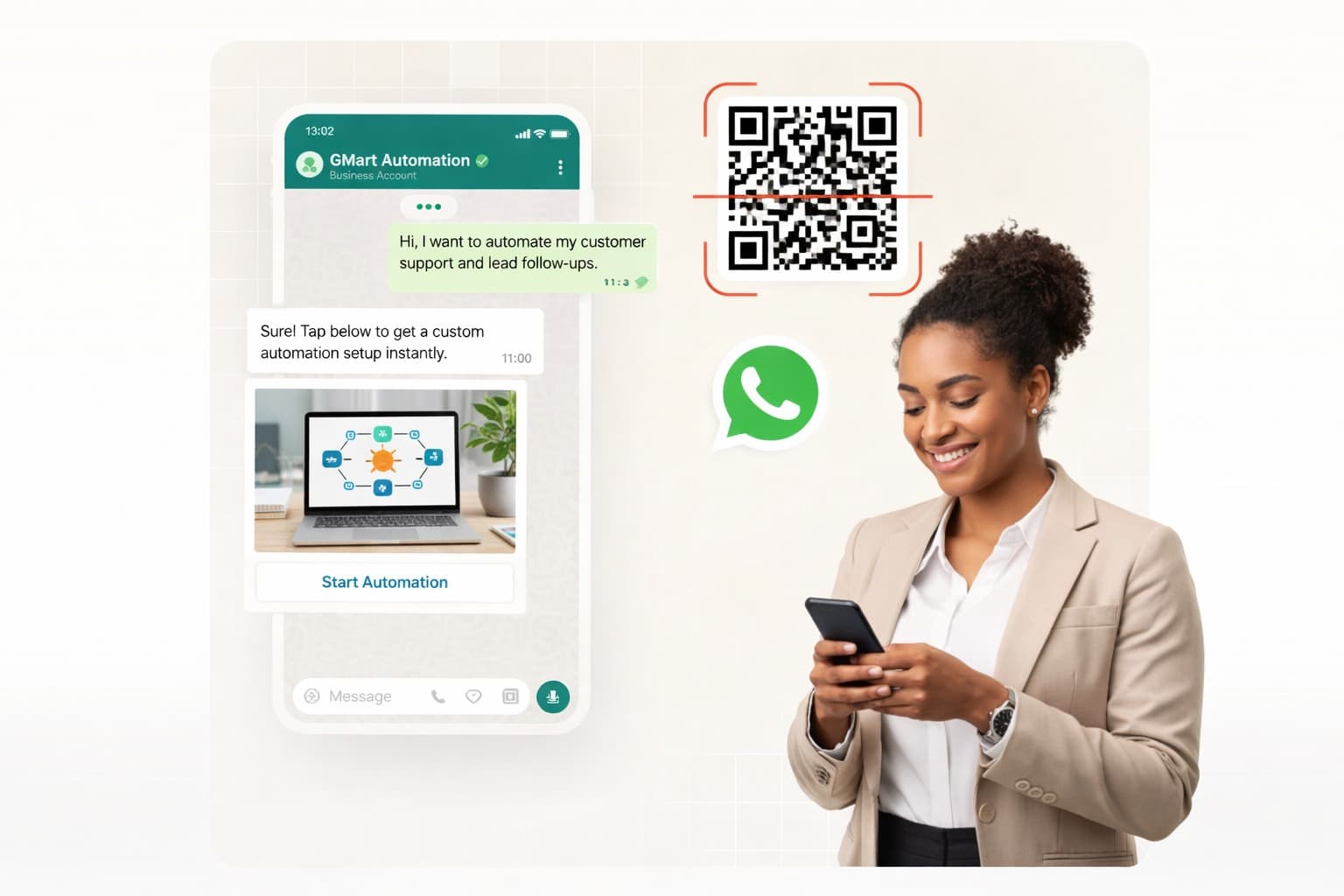
Enable instant customer conversations by sharing a scannable WhatsApp QR code. Customers can reach you in one scan—no number saving, no friction.
Generate WhatsApp QR codes effortlessly for one or multiple business numbers. Share them across teams and touchpoints to simplify customer communication on WhatsApp.
Use WhatsApp QR codes across websites, landing pages, stores, and marketing materials to let customers connect with you instantly by scanning—online or offline.
Ways to Use WhatsApp QR Code
Benefits of WhatsApp QR Code
Boost Sales & Customer Engagement with GMart WhatsApp API
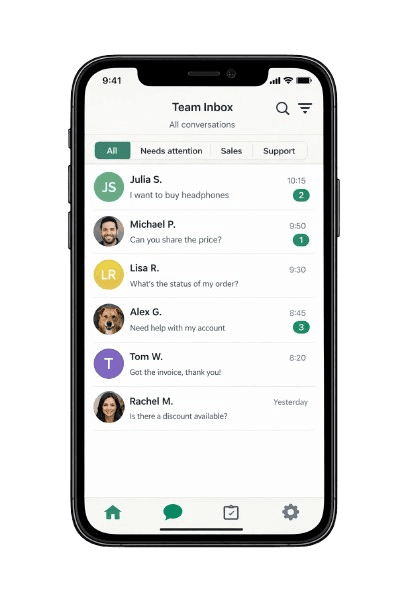
- Engage with customers on the go using a fast, reliable inbox designed for business teams.
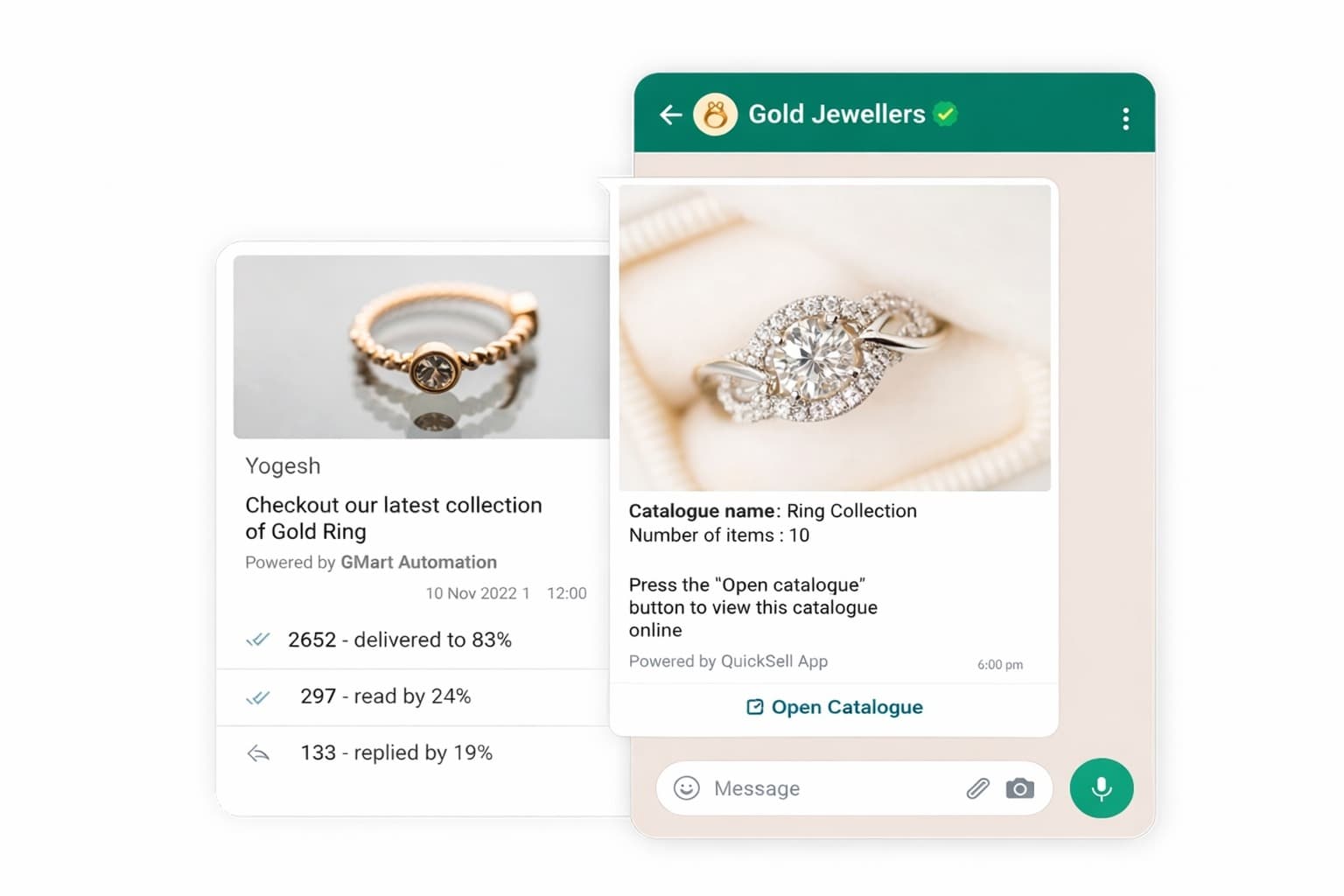
- Run unlimited campaigns and track delivery, reads, replies, and engagement in real time.
- Assign conversations intelligently across sales, support, and operations teams.
- Automate FAQs, lead qualification, product inquiries, order updates, and follow-ups.
- Connect WhatsApp with your CRM, ERP, ticketing, and internal workflows effortlessly.
- Build trust instantly with a verified business presence on WhatsApp.
- Get continuous support via WhatsApp, call, or email to keep your operations running smoothly.
Frequently Asked Questions
You can easily generate a WhatsApp QR Code using GMart’s free WhatsApp QR Code Generator. Just enter your WhatsApp number, optionally add a welcome message, and generate the QR code instantly—no technical setup required.
No. Scanning a WhatsApp QR code only opens a chat with your number. All WhatsApp conversations are protected with end-to-end encryption, so only you and the recipient can read the messages—no third party has access.
You can scan a WhatsApp QR Code in a few simple steps. The process is slightly different for Android and iOS users.
- For Android users:
- Option 1: Scan using WhatsApp Settings → Open WhatsApp → Tap More Options (⋮) → Settings → QR code icon → Scan Code → Point your camera at the QR code
- Option 2: Scan from Gallery → WhatsApp → Settings → QR code icon → Scan Code → Gallery → Select QR code image
- Option 3: Scan from Camera or Chat → Open WhatsApp Camera or any chat → Tap Camera icon → Scan QR code
- For iOS users (iPhone):
- Option 1: Scan using WhatsApp Settings → Open WhatsApp → Settings → QR code icon next to your name → Scan → Point camera at QR code
- Option 2: Scan from Photos → WhatsApp → Settings → QR code icon → Scan → Photos → Select QR code image
- Option 3: Scan from Camera or Chat → Open WhatsApp Camera or any chat → Tap Camera icon → Scan QR code
To scan a WhatsApp QR code displayed on another phone, open WhatsApp on your device, access the QR scanner or camera, and point it at the code shown on the other screen. Follow the on-screen prompt to open the chat seamlessly.
Accelerate Sales & Engagement with GMart WhatsApp Automation powered by WhatsApp Business API
Run sales, support, and customer interactions on WhatsApp using GMart’s automation platform—powered by the official WhatsApp Business API.Our team helps you onboard, configure, and go live quickly, so you can start automating conversations without friction.